What belongs in a performance test report?
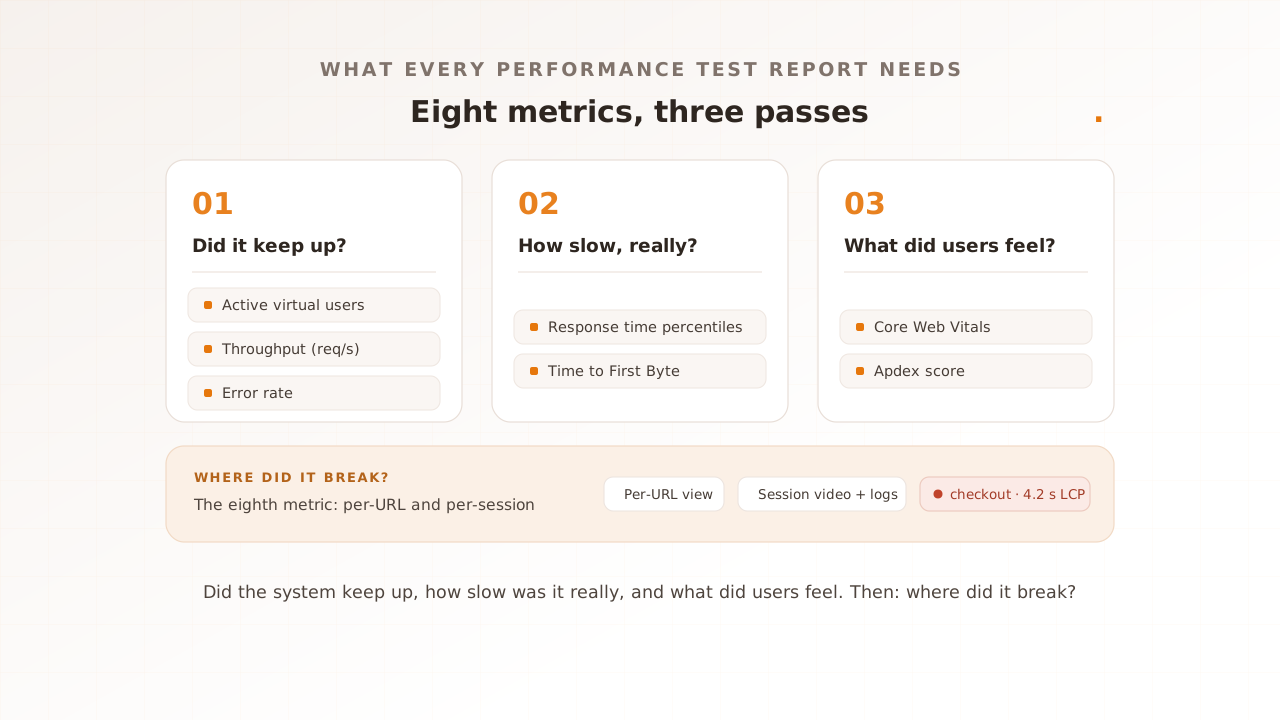
A performance test report is the set of metrics a load test produces to describe how a system behaved while many simulated users hit it at once. A useful report answers three questions, in order: did the system keep up, how slow was it really, and what did the people using it actually experience?
Not every counter a tool emits earns a place. A metric belongs in the report when it does four things:
- Drives a decision. Reading it changes what you ship or fix.
- Reflects the user, not just the server. A fast backend can still render a slow page.
- Survives aggregation. It holds up read as a distribution or per page, not flattened into one average.
- Compares across runs. This build can be measured against the last.
Those tests map to a known framework. Google’s site reliability team groups monitoring into four golden signals: latency, traffic, errors, and saturation. Measured from the browser and the load generator, this report covers the first three directly. Saturation, how full the server’s CPU, memory, and connection pools are, is read from your own infrastructure or APM beside the test, not from the browser. We flag where it fits and keep the list to what the test itself can see. For how this differs from sending raw requests, see real-browser load testing.
Why the right metrics matter
The right metrics matter because page speed maps to money, and the wrong metrics hide the moment it slips. Performance is not a vanity concern; it moves conversion, bounce, and revenue, and a report built on the wrong numbers can read green while customers leave.
The size of the effect is well documented. A 2020 study by Deloitte for Google, Milliseconds Make Millions, found that improving mobile load speed by a tenth of a second lifted retail conversions by 8.4% and average order value by 9.2%. Portent’s 2022 analysis of more than 100 million page views found a site loading in one second converted business-to-business visitors at roughly three times the rate of one loading in five, with e-commerce conversion falling about 0.3% for every additional second.
Those gains live inside these metrics. A tenth of a second is the gap between a green and a red threshold; it hides inside a percentile or a Core Web Vital, never inside an average. Report the wrong numbers, and the regression that costs the conversion ships unseen.
The 8 metrics every performance test report should include
These are the eight metrics a report should carry, grouped by the three questions. The first three show whether the system kept up. The next two show how slow it really was. Two more show what users felt. The last shows where it broke.
1. Active virtual users over time
What it is. A virtual user is one simulated visitor the test drives through your site. Active virtual users over time is the count running concurrently at each moment, drawn as a curve that ramps up, holds, and ramps down.
Why it belongs. It is the x-axis for everything else. A two-second response means one thing at 50 virtual users and something very different at 5,000. Without the load level beside it, no other metric can be read.
How to read it. Confirm the curve matches the test you intended: the ramp rate, the peak, and how long you held it. Line every other metric up against it, so you can see the load at which numbers started to move.
The catch. A single peak figure (“tested to 5,000 users”) hides the shape. Holding it for ten minutes is not the same as touching it for ten seconds.
2. Throughput
What it is. Throughput is the work the system completed per unit of time, usually requests per second or completed transactions per second. Where virtual users describe the load you applied, throughput describes the work that actually got done.
Why it belongs. It is the clearest measure of real capacity. Add virtual users and watch throughput: while it keeps rising, the system is scaling; when it flattens, you have found a ceiling. That plateau is one of the most useful things a load test can show.
How to read it. Plot it against active users. The point where throughput stops climbing while users keep arriving is the saturation knee, the practical limit of the current setup.
The catch. Throughput alone is a vanity number. A system can hold steady throughput while response times balloon and errors climb; a count of completed requests says nothing about how fast or correct they were. Always read it next to latency and error rate.
3. Error rate
What it is. Error rate is the share of requests or user sessions that failed, as a percentage. It separates work the system completed correctly from work it dropped, rejected, or returned broken.
Why it belongs. Speed is meaningless if the response is wrong. A checkout that returns a 500 error in 200 milliseconds is fast and useless. Error rate is the correctness half of every performance number, and it usually climbs first when a system is pushed past its limit.
How to read it. There is no universal good error rate, so tie it to your own service level. For scale, a 99.9% success target (three nines) leaves room for about 8 hours 46 minutes of failure a year. Separate HTTP errors from failed journeys: a page that returns 200 but never finished checkout is a failure the rate should count.
The catch. A low overall rate can hide a single broken endpoint. Break errors down by URL and by type before you call the run clean.
4. Response time percentiles (p50, p95, p99)
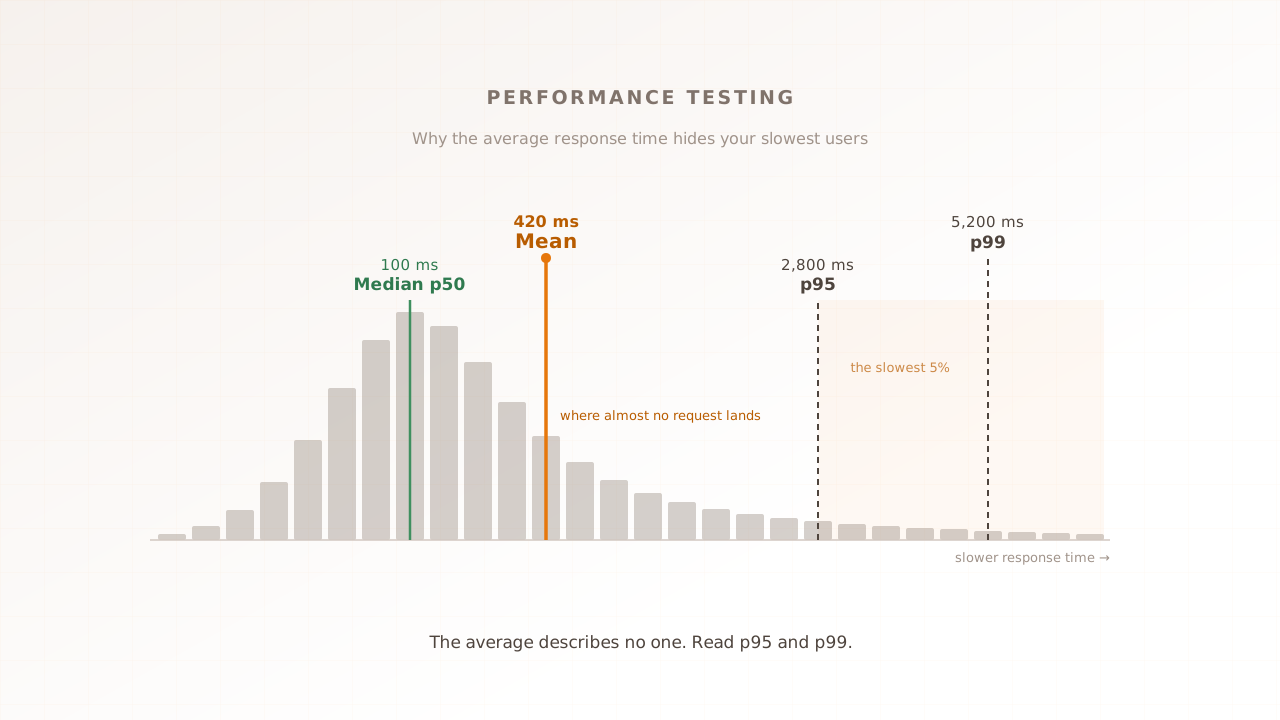
What it is. Response time is how long a request took, and a percentile is the value below which a given share of requests fall. The 95th percentile (p95) is the time 95% of requests came in under; only the slowest 5% took longer. p50 is the median, p99 the slow tail.
Why it belongs. Percentiles describe the experience real users get, including the unlucky ones. The slowest few percent are often your highest-value sessions, the full carts and the long forms, and they are exactly what an average erases.
How to read it. Read p50, p95, and p99 together against your target. A healthy p50 with a p99 several times higher is a tail problem: most users are fine, a meaningful minority are not.
The catch. Never report the mean alone, and do not confuse a percentile with an average of a slice. p95 is not the average of the slowest 5%; it is the single value 95% of requests beat. The mean is a figure a few requests can drag either way, burying the tail where regressions live.
5. Time to First Byte (TTFB)
What it is. Time to First Byte (TTFB) is how long the browser waited from making a request to receiving the first byte of the response. It captures the server’s thinking time: routing, database calls, and rendering the initial HTML.
Why it belongs. TTFB is the handoff point between your server and the browser, and the leading indicator of page experience. It is the first component of loading, so when the backend slows under load, TTFB moves before anything the user sees does. web.dev considers a TTFB of 800 milliseconds or less good, and anything past 1.8 seconds poor.
How to read it. Watch it across the load curve. A TTFB that holds at low load and rises sharply near peak is the early sign that the server is queuing requests.
The catch. TTFB is not itself a Core Web Vital, and a fast TTFB does not guarantee a fast page. The server can answer in 200 milliseconds and the browser can still take three seconds to render. It is necessary, not sufficient.
6. Core Web Vitals (LCP, INP, CLS)
What it is. Core Web Vitals are Google’s three page-experience metrics, measured in a real browser: Largest Contentful Paint (LCP) for loading, Interaction to Next Paint (INP) for responsiveness, and Cumulative Layout Shift (CLS) for visual stability. They describe what the visitor sees and feels, not what the server returned.
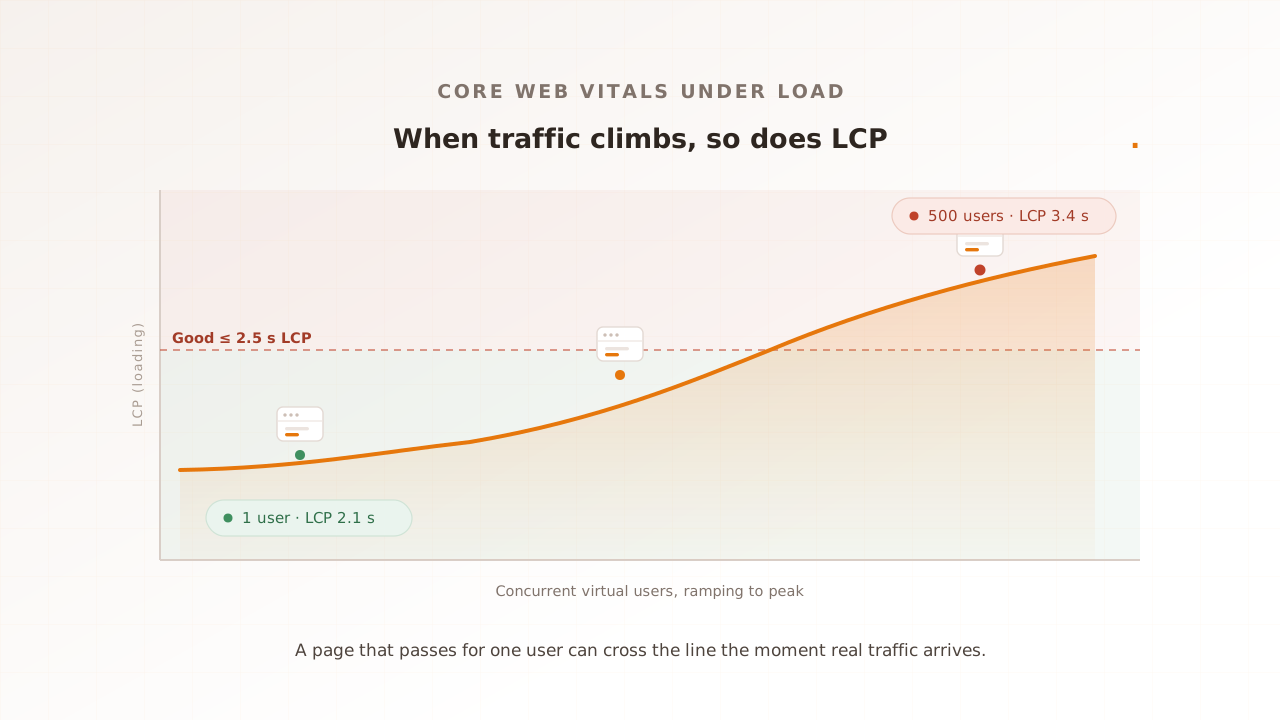
Why it belongs. This is the layer most reports miss. Server metrics can all look healthy while the rendered page is slow, because a fast response still has to become pixels. web.dev’s good thresholds, assessed at the 75th percentile of visits, are 2.5 seconds for LCP, 200 milliseconds for INP, and 0.1 for CLS. The set is current as of 2024: INP replaced First Input Delay on 12 March 2024.
How to read it. Compare each Vital under load to its single-user baseline, per URL. If you do not have that baseline, a single-page speed test produces one controlled reading: Evaluat Pulse returns LCP and CLS, plus FCP and TTFB, from one real-browser load with Evaluat’s A to F composite grade. A single cold load does not produce a representative INP. Most sites have room to move: in 2025, 48% of sites passed all three Core Web Vitals on mobile and 56% on desktop.
The catch. Vitals are defined by the browser, so a protocol-level tool that sends HTTP requests without rendering measures server response, not these. Capturing them takes a real browser per virtual user, and they only tell the truth when measured under load.
7. Apdex score
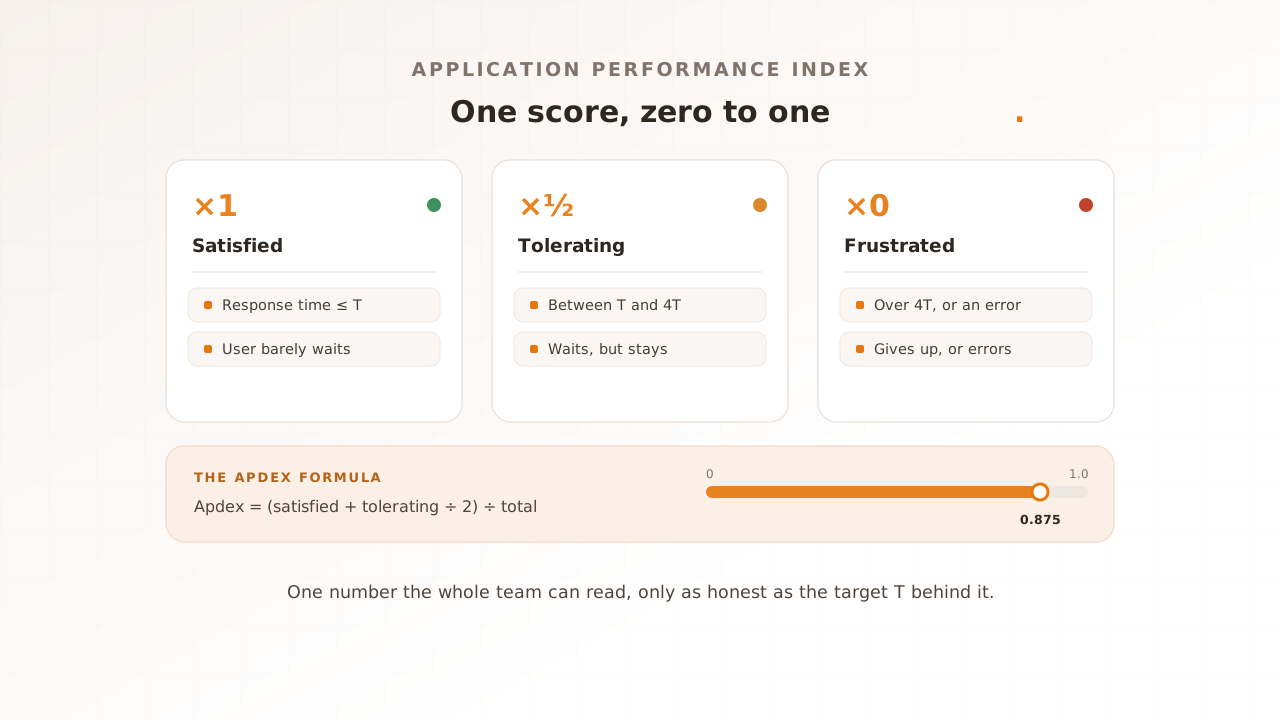
What it is. Apdex (Application Performance Index) is a single score from 0 to 1 that summarizes user satisfaction with response time. You pick a target time T; requests at or under T count as satisfied, those between T and 4T as tolerating, and anything slower as frustrated. The score is (satisfied + tolerating/2) divided by total requests.
Why it belongs. It compresses a distribution into one number a whole team can read, including people who do not work in percentiles. A product manager can track Apdex release over release without parsing a latency histogram.
How to read it. Closer to 1 is better. The score is only as honest as the T you choose, so set T from the response time your users actually expect for that action, and keep it fixed so scores compare across runs.
The catch. A single number hides the shape that produced it. Two very different distributions can land the same Apdex, so use it as the headline and keep the percentiles behind it for diagnosis.
8. Per-URL and per-session breakdown
What it is. A per-URL or per-transaction breakdown reports every metric above, the response times, errors, and Vitals, split by page and by step rather than as one site-wide figure. The best reports go further and keep the individual session behind each number.
Why it belongs. It is the metric that turns a result into a fix. A site-wide LCP of 2.6 seconds can hide one revenue-critical page sitting at 4.2; an overall error rate of 0.4% can be a single endpoint failing half its requests. The breakdown is where you find which page, which step, and which user.
How to read it. Sort by the worst page, not the average. Budget and report each critical journey separately, then open the slowest individual sessions to see what the aggregate cannot tell you.
The catch. Aggregates flatter. Without the per-URL split and the underlying sessions, a report can read healthy while one path quietly fails. A failure at peak isn’t a percentile. It’s a session.
Quick reference: the 8 metrics and their benchmarks
The table collects the eight, the question each answers, and a healthy signal where a published one exists. Where none does, the benchmark is your own target, set before the test and held steady across runs.
| Metric | Question it answers | A healthy signal |
|---|---|---|
| Active virtual users over time | Did it keep up? | Curve matches the intended ramp, hold, and peak |
| Throughput (requests per second) | Did it keep up? | Rises with users, then plateaus at the capacity knee |
| Error rate | Did it keep up? | Within your SLA; no single endpoint spiking |
| Response time percentiles (p50/p95/p99) | How slow, really? | p95 and p99 within target; tail not far above p50 |
| Time to First Byte | How slow, really? | 800 ms or less (web.dev) |
| Core Web Vitals (LCP/INP/CLS) | What did users feel? | LCP 2.5 s or less, INP 200 ms or less, CLS 0.1 or less (web.dev) |
| Apdex score | What did users feel? | Close to 1, against a fixed target T |
| Per-URL and per-session breakdown | Where did it break? | Worst page within target, not just the average |
Which metrics matter most for your test?
All eight belong in a complete report, but which you read first depends on what you are testing. The weighting changes with the question you brought to the run.
- A pure API or backend load test. Lead with throughput, error rate, and response time percentiles. There is no rendered page, so Core Web Vitals do not apply; this is the case where a protocol-level tool is the right instrument.
- A checkout or user-journey test. Lead with per-transaction response times, error rate per step, and Core Web Vitals on the pages users wait on. The question is whether the whole flow holds together, so the per-step breakdown matters most.
- A capacity rehearsal before a known spike, such as a sale or a launch. Lead with the throughput plateau and the load level at which error rate and percentiles start to climb. You are looking for the knee, the point where adding users stops adding work.
- A release gate in CI. Lead with per-URL budgets compared to the previous build, using existing CI tools. See performance regression testing for a practical pipeline. Evaluat’s managed Testing Suite and CI gates are planned.
Common mistakes when reading a performance test report
Most misreadings come from trusting a comfortable number over an honest one. Five recur often enough to name.
- Reporting the mean. An average is structurally optimistic and hides the slow tail. Read percentiles instead, and set thresholds at p95 or p99.
- Aggregating across URLs. A healthy site-wide figure can hide one failing page. Budget and report per URL.
- Reading throughput without latency and errors. High throughput with climbing response times and failures is a system in trouble, not a system performing. The three are one picture.
- Trusting a single-user score as a peak prediction. A green result from one user on an idle server says nothing about a thousand users on a busy one. Lab numbers are a code check, not a capacity check.
- Ignoring saturation. The test sees latency, traffic, and errors; it cannot see your server’s CPU, memory, and connection pools. Watch those from your infrastructure or APM alongside the run, or you will misread a saturation failure as a slow application.
How Evaluat reports these eight
Evaluat is a real-browser performance testing platform, and its report is built around these eight. Every virtual user runs in its own isolated browser, so the report carries active users over time, throughput, HTTP success and error rates, response time percentiles from p50 to p99, and Time to First Byte, alongside the experience metrics a protocol-level test leaves out: Largest Contentful Paint, Interaction to Next Paint, Cumulative Layout Shift, and an Apdex score with configurable thresholds.
Because every user is a real browser, the experience metrics are what those controlled browsers recorded under the selected test conditions, not a server-side estimate or a substitute for field CrUX. And because every session is addressable, the report breaks all of it down per URL and keeps the evidence behind each number: session video, a network log, and a console log for every virtual user. When a page busts its target at peak, you open the worst session and watch the moment it slowed. Web Vitals captured at load. Per session. Per URL.
This is deliberately a narrow tool. If you are load-testing a pure API, a non-HTTP protocol, or chasing extreme request-per-second numbers, a protocol-level tool like k6 or JMeter is the better fit, and our comparison with JMeter says so plainly. Those tools are built for high-concurrency API load and measure server response, which is necessary but not the same as what the browser renders. When the question is what your users experienced at peak, that takes a real browser.
A complete performance test report is not a wall of counters. It is eight metrics that answer three questions: did the system keep up, how slow was it really, and what did the people using it experience, with a per-URL breakdown to show where it broke. Read those against benchmarks you set before the run, and the regression that would have cost a conversion shows up as a test result instead of a support ticket.
Test in real browsers. Debug in real sessions. Book a demo.